You usually do not need to buy a Korean keyboard or download a separate typing app. Windows, macOS and iPhone provide ways to add Korean input, and Android keyboard apps such as Gboard let you add Korean as a typing language.
Adding Korean input lets you type Hangul in messages, documents and search boxes. Your physical keyboard can keep its English labels. Changing the typing language and changing every menu on your device into Korean are separate choices.
If you only want to practise now, skip setup and open Gachi Korea’s free Hangul Typing Practice. Its English keyboard → Hangul (no setup) mode works inside the practice page. It does not install a Korean keyboard on your device.
Choose your device
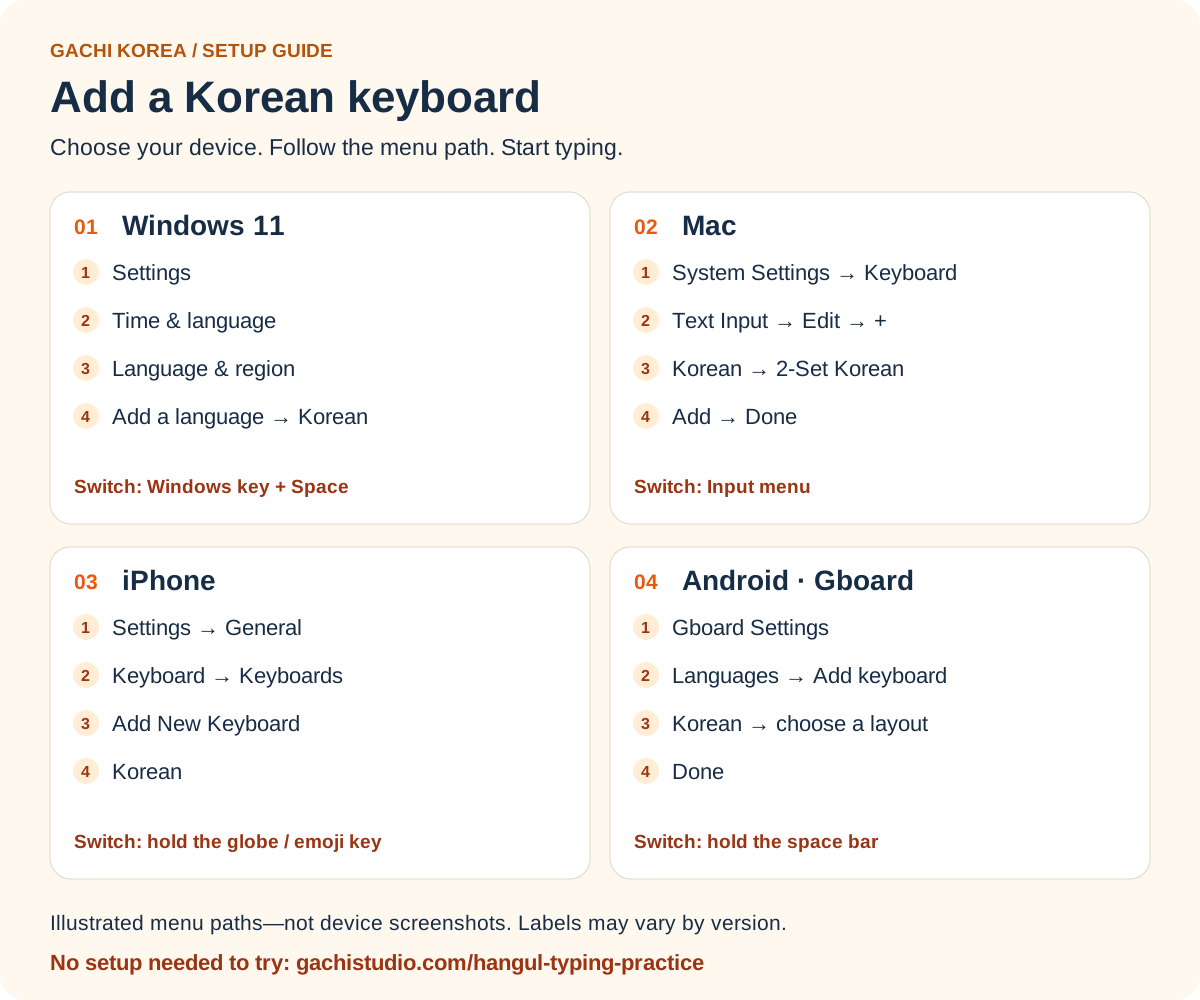
These are illustrated menu paths, not device screenshots. Menu names can vary with the operating-system version, device language and keyboard app. Official instructions are linked under each section.
| Your goal | What to use |
|---|---|
| Practise Hangul without changing device settings | The app’s English-key mode or on-screen keys |
| Type Korean in other programs | Add Korean input in device settings |
| Match the desktop keyboard guide | Choose two-set Korean / 두벌식 when a layout choice is available |
| Use an existing Korean keyboard | Choose My device’s Korean keyboard in the practice app |
Windows 11: add Korean and select its keyboard
- Open Settings, then Time & language → Language & region.
- If Korean is missing, choose Add a language, search for Korean, and follow the installation prompts. Leave the option to make Korean your Windows display language unselected if you want your menus to stay as they are.
- Under Korean’s Language options, check the Keyboards section. Add the Korean input option if it is not already installed.
- Use the taskbar’s input-language selector, or Windows key + Space, to select Korean.
Open a normal text field and try typing. If you are still seeing English letters, check the Korean input method’s Hangul/English mode as well as the selected language. Adding a language does not mean every text field has switched to it.
Official Microsoft instructions for languages and keyboard layouts
Mac: choose 2-Set Korean
- Open Apple menu → System Settings → Keyboard.
- Under Text Input, choose Edit, then the + button.
- Select Korean → 2-Set Korean, then Add and Done.
- Choose Korean from the menu-bar Input menu. You can also use Control + Space to switch input sources, depending on your shortcut settings.
For our typing guide, choose 2-Set Korean, rather than a three-set or romanization-based input source. The input menu’s Show Keyboard Viewer option can help you see the current layout while you learn.
Official Apple instructions for Korean input on Mac
iPhone: add Korean in Keyboard settings
- Open Settings → General → Keyboard → Keyboards.
- Tap Add New Keyboard and choose Korean.
- Open a text field. Touch and hold the globe or emoji keyboard-switch key, then select Korean.
To review the available layout choices, return to the keyboard list and tap Korean. A compact phone layout may look different from the desktop-style guide in our app. You can use your preferred phone layout, or tap the app’s on-screen keys to follow its displayed arrangement.
Official Apple instructions for adding and switching iPhone keyboards
Android with Gboard: add Korean as a language
- Open a text field so Gboard appears, then open the keyboard’s Settings.
- Choose Languages → Add keyboard → Korean.
- Select the layout you want, then tap Done.
- Touch and hold the space bar to switch languages.
These steps are for Gboard, not every Android keyboard. If you use Samsung Keyboard or another keyboard app, look for that app’s language settings instead. If Gboard is not installed and you choose to use it, follow the official Google instructions and store link below.
Official Google instructions for adding and switching Gboard languages
Test your keyboard with 가, 나 and 물
With two-set Korean active, try these QWERTY key positions in a text field:
| Press | Expected Hangul | What is happening |
|---|---|---|
| R → K | 가 | ㄱ and ㅏ join into a syllable |
| S → K | 나 | ㄴ and ㅏ join into a syllable |
| A → N → F | 물 | ㅁ, ㅜ and final ㄹ form one block |
| Shift + R → K | 까 | Shift selects ㄲ before ㅏ |
The capitals above label keys; hold Shift only where it is written. You do not type the romanization “ga” to make 가. In two-set Korean, the keys represent Hangul letters by position.
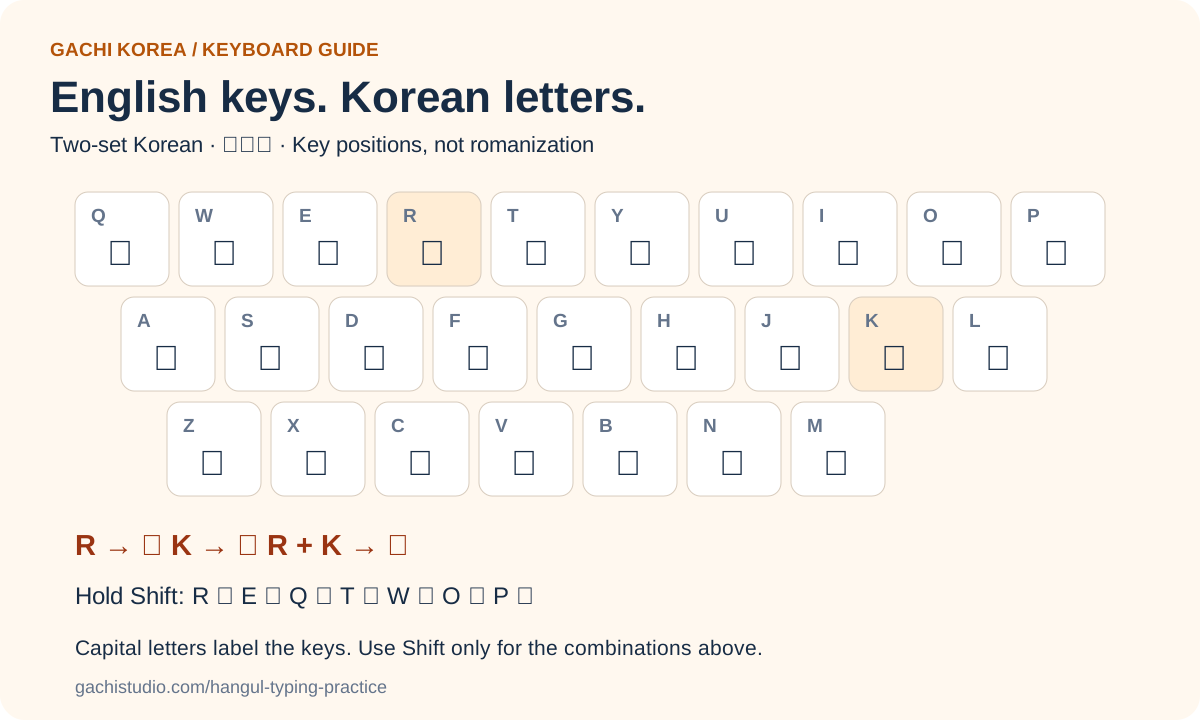
If your physical keyboard uses a non-QWERTY layout, printed labels may differ. Check your active input layout or use a keyboard viewer. The practice app also has clickable keys, so you can follow the same visual layout without relying on the labels printed on your keyboard.
Why am I still getting English letters?
Check these possibilities in order:
- Korean was added but not selected. Use the device’s keyboard-switch control in the text field where you want to type.
- The Korean input method is in English mode. Check the input indicator rather than repeatedly reinstalling the language.
- You selected romanization input on Mac. Choose 2-Set Korean to match the R → ㄱ and K → ㅏ examples here.
- You are using the wrong input setting in the practice app. For device Korean input, choose My device’s Korean keyboard. For the app’s built-in conversion, choose English keyboard → Hangul (no setup) and keep the device keyboard in English.
Try a plain notes document before returning to a more complex app. A short test such as 가 helps you separate a keyboard setting problem from a problem with the text field itself.
Do I need Korean keyboard stickers?
They are optional. Stickers can make letter positions visible, but a keyboard viewer or the app’s English–Hangul guide can do that while you practise. Begin with the keyboard you have before deciding whether another accessory would help.
If recognising the letters is the difficult part, review Korean consonants and Korean vowels. For how the parts fit together, try Let’s Build Hangul. Keyboard setup gives you a way to enter letters; practice helps you recognise and spell them.
Your keyboard is ready—now practise using it
Start with copy typing and a short session. Follow the next-key hint, check your answer, and review any mistakes. When the positions become more familiar, hide the hints or try listening dictation for a level with recordings.
Put your Korean keyboard to work
Practise letters, syllables, words and short sentences with a visual keyboard and finger guide. No account required.
Open Hangul Typing Practice →- See the beginner Korean typing practice guide
- Practise handwriting with Hangul stroke-order animations
- Explore the Gachi Korea learning path
Device setup instructions checked against the linked Microsoft, Apple and Google support pages on 12 October 2026. The diagrams and practice examples are by Gachi Korea.